
How to use Gesture Synth in 4 steps
Gesture Synth is a two-hand webcam instrument. Your left hand selects the scale degree and major or minor context; your right hand chooses the chord quality and controls expression. You can reach a first playable chord by following these four steps.
- Open the play page and choose Start playing.
- Allow camera access, then wait for the hand model and game HUD to become ready.
- Show a left-hand degree from I to VII and keep the gesture steady briefly.
- Raise one to four fingers on your right hand to choose a chord quality and hear the chord.
For the most reliable start, use a desktop or laptop in a well-lit space with both hands fully visible and separated in the camera frame. Gesture Synth requests video only and does not request microphone access.
Start playing Gesture SynthLeft hand controls
Your left hand chooses the scale degree. One through five extended fingers select I through V. VI uses index and pinky; VII adds the thumb. Turn the left wrist to move between major and minor harmony.
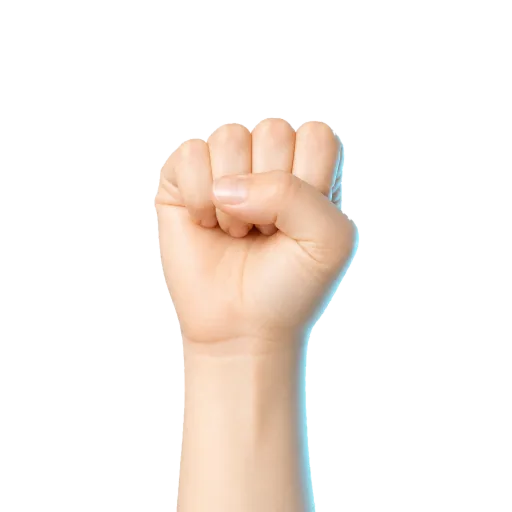
No command
Closed fist. Releases the current chord after a short stabilization delay and acts as a silent rest.

I / i
Index finger. Major mode shows I, minor mode shows i.
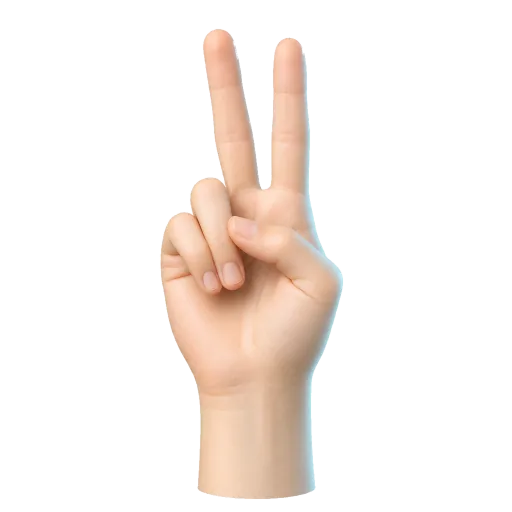
II / ii
Index and middle fingers. Selects the second scale degree.
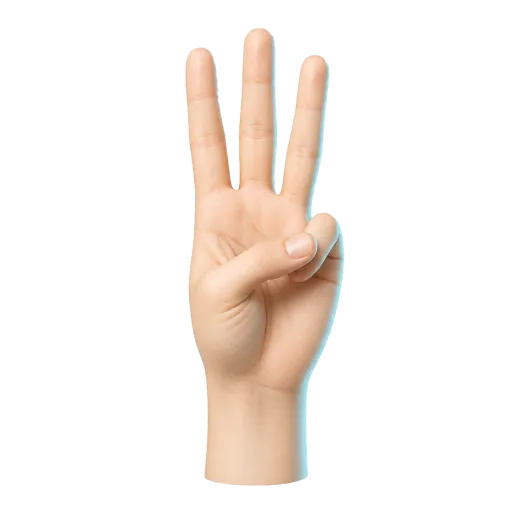
III / iii
Index, middle, and ring fingers. Selects the third scale degree.
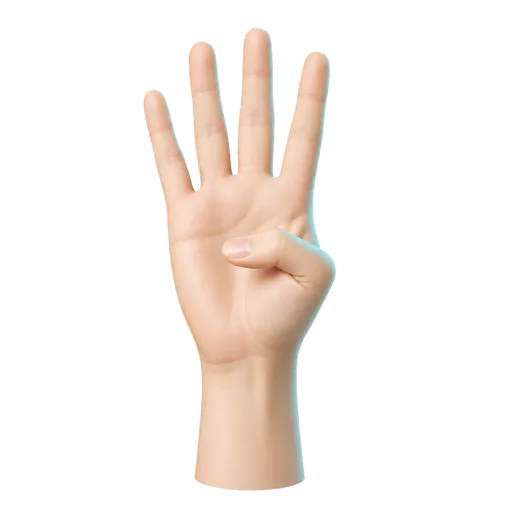
IV / iv
Four raised fingers with the thumb tucked. Selects the fourth scale degree.
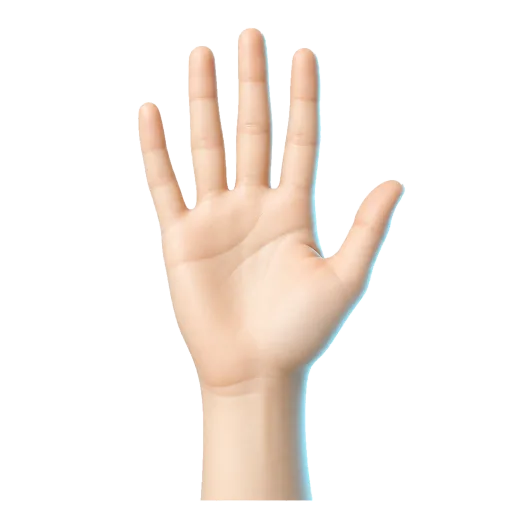
V / v
Five extended fingers. Selects the fifth scale degree.
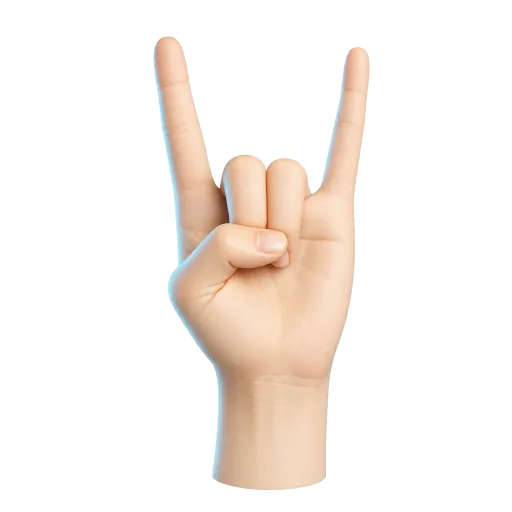
VI / vi
Index and pinky only. This is a special combination, not a finger-count gesture.
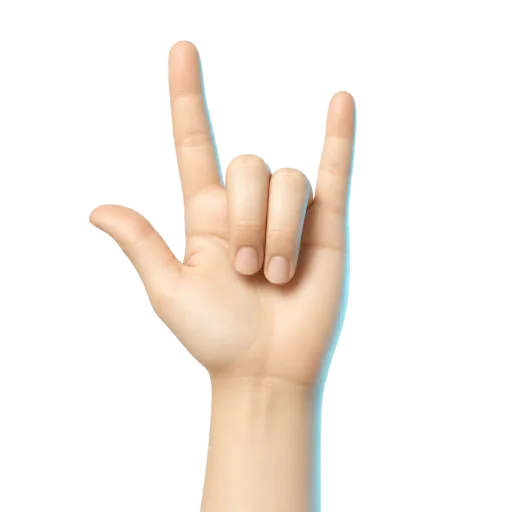
VII / vii
Thumb, index, and pinky. This special combination selects the leading-tone degree.
Right hand controls
Your right hand chooses chord quality. One to four raised fingers select the available voicing; a closed fist silences the chord. Keep the shape steady briefly so the stabilizer can commit the gesture.
No command
Closed fist. Selects no chord quality and silences the current chord after a short stabilization delay.
Quality 1
One raised finger. Major mode plays Major, minor mode plays Minor.
Quality 2
Two raised fingers. Plays the first inversion version of the current chord.
Quality 3
Three raised fingers. Major mode plays Major 7th, minor mode plays Minor 7th.
Quality 4
Four raised fingers. Major mode plays Dominant 7th, minor mode plays Diminished 7th.
Octave, volume, and filter
Add the right thumb to a quality gesture to play that chord one octave lower. Move the right hand higher in the frame for more volume, and tilt the right wrist to sweep the synth filter.
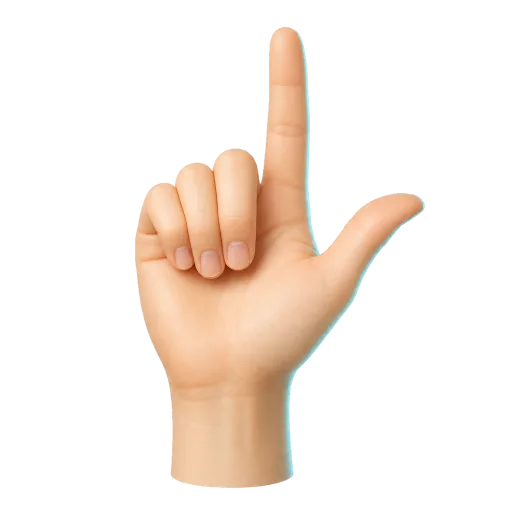
Quality 1 (-8ve)
Thumb plus index finger. Plays the low-octave Major or Minor version.
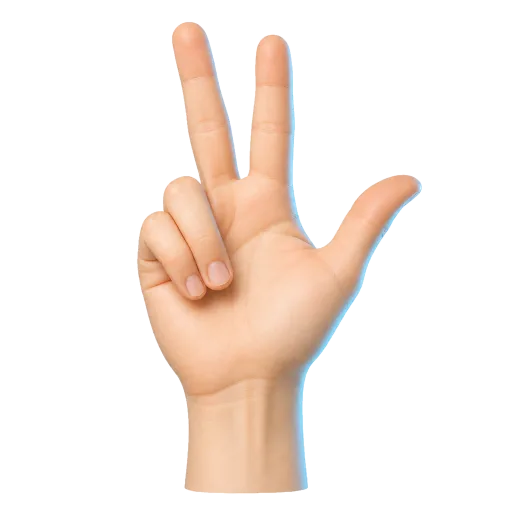
Quality 2 (-8ve)
Thumb, index, and middle fingers. Plays the low-octave first inversion.
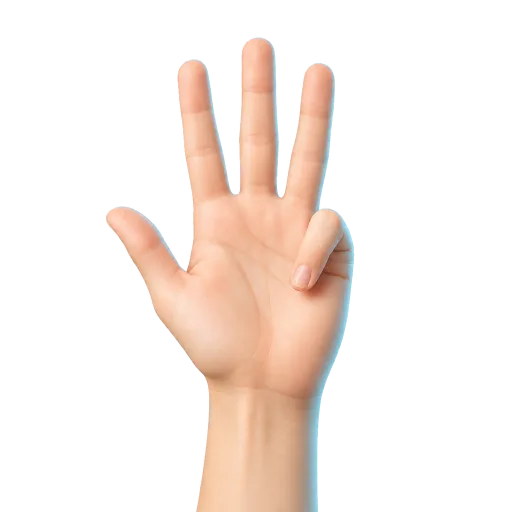
Quality 3 (-8ve)
Thumb, index, middle, and ring fingers. Plays the low-octave seventh chord.
Quality 4 (-8ve)
Five extended fingers. Plays the low-octave Dominant or Diminished seventh.
Volume
Move the right hand up and down in the camera frame. Higher hand position raises volume.
Tone / filter sweep
Tilt the right wrist inward or outward. The synth sweeps tone and filter color from that wrist angle.
Major / minor
Tilt the left wrist to switch between major and minor context.
A first practice loop
Leave the default key in place and show one right-hand finger for the simplest quality. With your left hand, move slowly through I, IV, V, and back to I. Once each change is stable, use right-hand height to fade the loop in and out, then add a gentle filter sweep.
When that feels reliable, read the Gesture Synth chord guide for inversions, seventh chords, and a G major example. To turn a progression from a song into hand gestures, continue with the Gesture Synth song chord guide.
Troubleshooting
No camera: connect a webcam or check that another application is not already using it.
Unstable gestures: improve front lighting, keep hands fully visible, and separate overlapping fingers.
No sound: confirm browser audio is enabled and show both a left-hand degree and a right-hand quality.
For camera placement, lighting, permissions, and tracking fixes, read the Gesture Synth camera setup and troubleshooting guide.
For permission and network details, read the camera privacy policy.
Gesture Synth tutorial FAQ
Do I need a webcam to play Gesture Synth?
Yes. The full game uses camera-tracked hand gestures as its primary input and works best on a desktop or laptop with a reliable webcam.
Does Gesture Synth use my microphone?
No. The play page requests video only and explicitly disables microphone capture.
Is camera video uploaded?
No. MediaPipe reads camera frames in your browser to detect hand landmarks. The Gesture Synth application does not upload or store your camera video.
Why is a chord silent?
Keep both hands visible. The left hand must select a chord degree, while the right hand must show one to four raised fingers for a chord quality.