
Camera Setup and Troubleshooting for Gesture Synth
Set up a reliable webcam session for Gesture Synth with practical advice for lighting, framing, permissions, hand tracking, and sound.
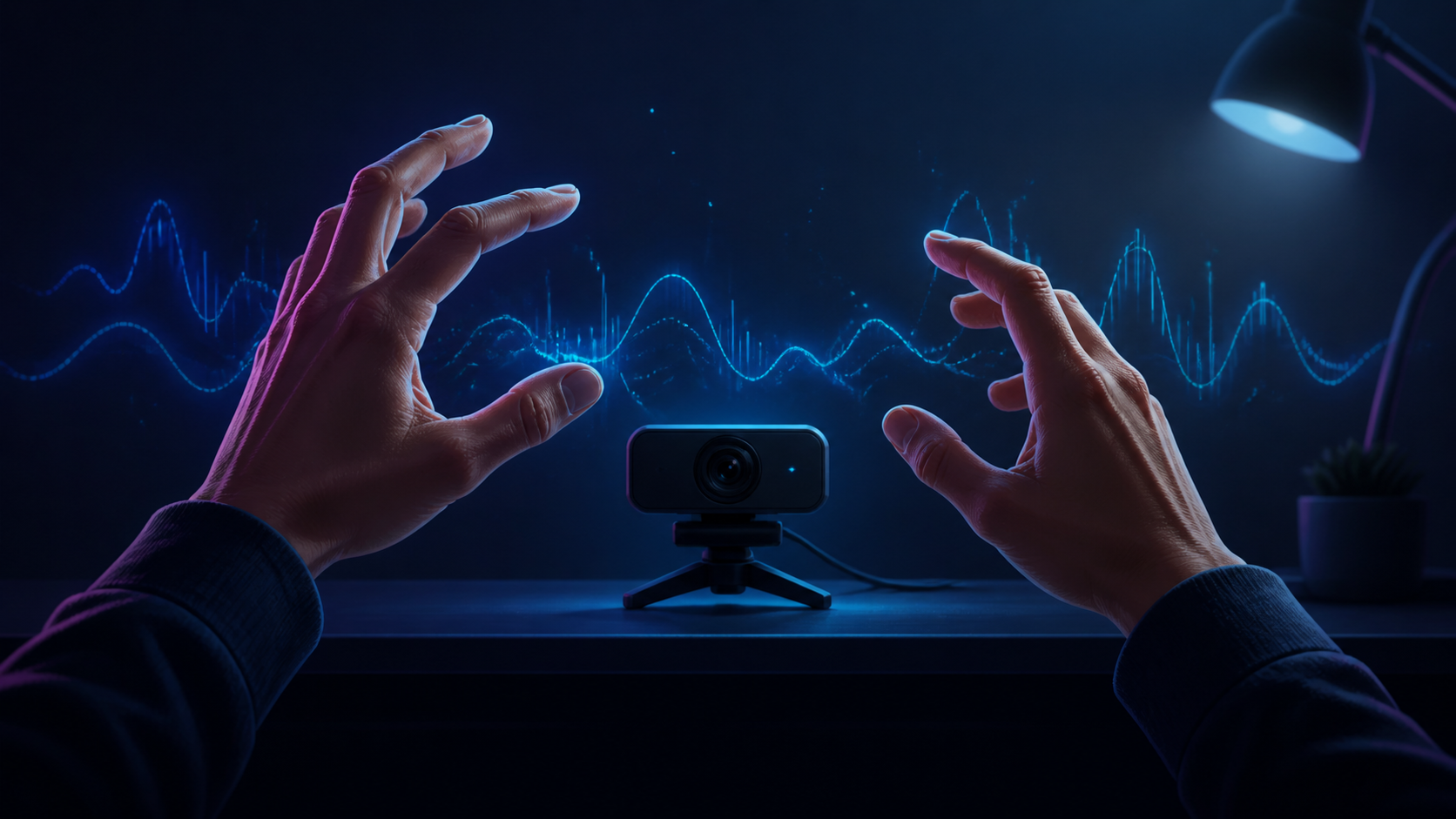
Gesture Synth is a browser instrument, so a dependable session starts with a current browser, a working webcam, and a little space to move. This guide covers the setup choices that make the first chord easier to find.
Start with a browser-ready setup
Use the secure site on a desktop or laptop, then open the play page. The homepage is only a preview. Camera access begins after you choose Start playing, so you can read the setup notes before granting permission.
- Place the computer where you can sit or stand comfortably without blocking the camera.
- Keep both hands within reach of the camera before you start the game.
- Choose the webcam you want to use when the browser asks for permission.
Choose a useful camera distance
There is no single required distance because laptop and external webcams have different fields of view. Use the image itself as the test: both wrists and every fingertip should remain visible with a margin around them while your hands are in a comfortable playing position. If fingertips repeatedly touch the top or side edge, move farther back before changing any tracking settings.
Moving too far away has a different cost: each hand occupies fewer pixels, making small finger differences harder to see. The practical sweet spot is the closest position that still lets both hands move through the gestures without being cropped.
Give the camera a clean view
Front lighting makes hand landmarks easier to detect. Avoid a bright window behind you, and leave enough space above and below your hands for the camera to see the full gesture rather than only fingertips.
Keep your left hand on the left side of the frame and your right hand on the right. Start with one clear shape per hand; fast movement and overlapping fingers are harder to stabilize than a held gesture.
If permission is denied
A denied permission request prevents the camera game from starting, but it does not affect the rest of the site. Check the camera icon or site permissions in your browser, select a connected webcam, and reload the play page before trying again.
Gesture Synth requests video only. It does not request microphone access, so a microphone permission prompt is not required for the game.
Rule out browser and device problems
If camera permission looks correct but no stream appears, confirm another application is not holding the webcam, reload the page, and test a current desktop browser. Multiple connected cameras can also create confusion if the browser selects a different device from the one you expect. The browser compatibility guide separates permission, camera, audio, and device-performance checks.
If hand tracking is unstable
Improve the light before changing your gestures. Then move farther from the camera, separate both hands, and hold each shape briefly so the tracker can distinguish the left-hand degree from the right-hand chord quality.
If one hand disappears, bring it back into the frame instead of waving faster. The game needs both hands to produce a complete chord: the left hand chooses the scale degree and the right hand chooses the voicing.
If recognition alternates between two finger counts, test that hand by itself with a more deliberate shape. A half-bent finger can sit near the classifier boundary even when the palm is clearly visible. The longer hand-tracking troubleshooting guide explains how to isolate left-hand, right-hand, lighting, and overlap problems.
If there is no sound
Confirm that browser audio is enabled and that the play page reached its ready state. Then show a valid degree with your left hand and a one-to-four finger quality with your right hand. A closed right-hand fist intentionally silences the chord.
The first successful chord is a useful checkpoint. Once it sounds, move slowly through the I-IV-V-I pattern from the chord guide before experimenting with octave, volume, or filter motion.
Keep the privacy boundary clear
Camera frames are read by MediaPipe in your browser for hand landmarks. Gesture Synth does not upload or store your camera video, and leaving the play page stops camera access. Read the Gesture Synth Privacy Policy for the current resource and storage details.
Camera processing is only one part of the website's data flow. The browser still downloads MediaPipe resources and the production site uses analytics. For a more detailed explanation of which requests leave the browser and which camera data does not, read What happens to your webcam video.